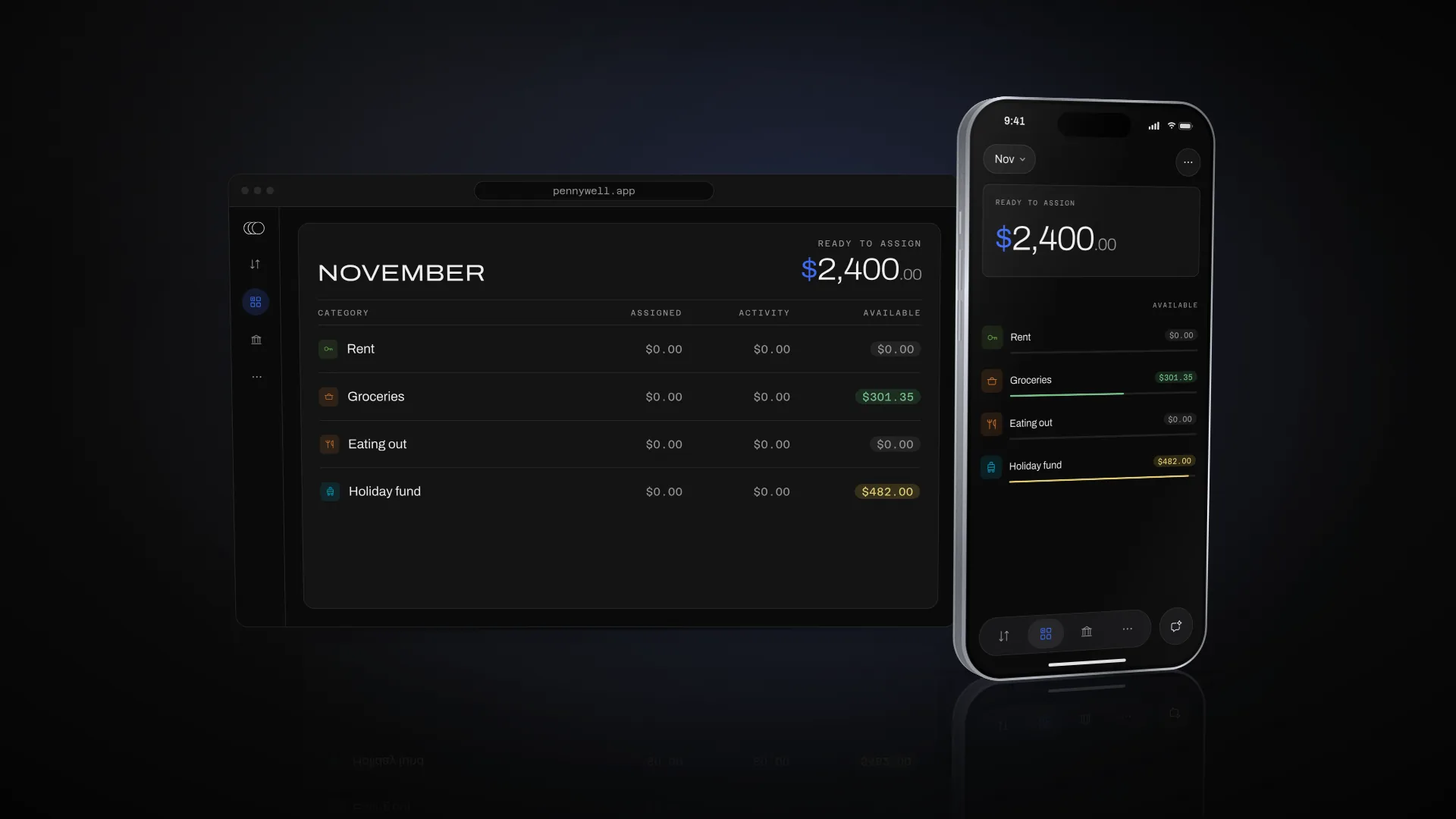
How envelope budgeting works
An envelope budget plans the money you already have, envelope by envelope, before you spend it.
The method, in five steps
Envelope budgeting plans the money in your accounts today, not money you expect to have. The same five steps, each time money comes in.
Money lands in Ready to Assign
Your pay, and any other money that comes in, arrives in Ready to Assign: money with no envelope yet. Plan only money you already have, never money you expect.
Give every dollar an envelope
Assign it to envelopes for what it has to do, such as rent, groceries or a trip, until Ready to Assign reads zero. In Pennywell, each envelope is a category.
Spend from the envelopes
Each purchase comes out of one envelope. Its Activity shows what was spent this month, and its Available what’s left to spend.
Cover overspending
If a purchase takes an envelope below zero, its Available turns red. Move money into it from Ready to Assign or another envelope, and the plan adds up again.
Carry on into next month
What’s left in each envelope stays in it next month. When more money comes in, it lands in Ready to Assign, and you give it envelopes in turn.
Try it on a sample budget
Your pay of $2,400.00 has just arrived. Assign it, record a purchase, overspend an envelope and cover it, then go on to next month. Nothing you do here is saved or sent.
Rent, Groceries and the Holiday fund have targets. A clock beside an envelope’s Available means its target still needs money this month; a check means it has what it needs.
Gives the targets the $1,850.00 they still need this month.
No pay arrives in December in this sample, so it starts with only what November leaves it.
November 2026
Ready to Assign
2,400.00 dollarsMoney with no envelope yet.
- Left over from October
- $0.00
- Income in November
- +$2,400.00
- Assigned in November
- $0.00
Accounts
- Chequing
- 2,400.00 dollars
- Credit card
- 0.00 dollars
Bills
- RentSet aside another $1,200.00 each month.AssignedActivity0.00 dollarsAvailable0.00 dollarsNothing left in this category. Underfunded: assign $1,200.00 more to meet the target.
Everyday
- GroceriesRefill up to $500.00 each month.AssignedActivity0.00 dollarsAvailable0.00 dollarsNothing left in this category. Underfunded: assign $500.00 more to meet the target.
- Eating outAssignedActivity0.00 dollarsAvailable0.00 dollarsNothing left in this category.
Goals
- Holiday fundSave $150.00 each month.AssignedActivity0.00 dollarsAvailable0.00 dollarsNothing left in this category. Underfunded: assign $150.00 more to meet the target.
Credit Card Payments
- Credit cardAssignedActivity0.00 dollarsAvailable0.00 dollarsNothing left in this category.
Activity
- PayrollReady to Assign · Chequing+$2,400.00
What carries over to next month
Envelopes
Whatever an envelope has left at the end of the month is still in it next month, before anything new is assigned.
Ready to Assign
Money you haven’t assigned is still in Ready to Assign next month, as what was left over from last month.
Cash overspending
An envelope overspent from a bank account starts next month at zero, and what it was short comes out of next month’s Ready to Assign.
Credit overspending
An envelope overspent on a credit card starts next month at zero too. What it was short stays on the card as debt, and Ready to Assign is untouched.
Targets say what each envelope needs
A target says what a category needs, and by when. Pennywell works out what that asks of this month, shows how far each has come, and can fund them all in one step.
Needed for spending
For spending that comes round again, such as rent or groceries: an amount by a day each week, month or year. Refill up to tops the category up to it; Set aside another adds it again each time.
Target balance
Build the category up to an amount and keep it there, with no date: a cushion for emergencies, say.
Target balance by date
Reach an amount by a month you choose, a share at a time: for a trip, a gift or a yearly bill.
Monthly savings builder
Assign the same amount every month, however much the category already holds.
Auto-Assign
Fund targets, in Ready to Assign’s menu, gives every target what it still needs this month, as far as Ready to Assign goes. The same menu can repeat last month’s Assigned or spending, or their averages, and one Undo takes any of them back.
Credit cards, in the same plan
A purchase on a credit card is spent from its envelope like any other. What the envelope covers is set aside for the card’s bill as you spend, so the money to pay it is already there.
The payment category
Each card has one, named after the card, in the Credit Card Payments group. Its Available is what you have set aside to pay the card.
Spending on the card
Whatever part of a purchase its category can cover moves to the card’s payment category, ready for the bill.
Spending more than a category holds
The rest becomes debt on the card. The category’s Available turns red, the payment category holds less than the card owes, and Ready to Assign is untouched. Assign more to the payment category to catch up.
Paying the card
Record the payment as a transfer from your bank account to the card. It comes out of the payment category, which was set aside for it.
Where each part lives in Pennywell
On a phone, these are the tabs along the bottom of the screen. On a wider window, they run down the side.
Budget
Ready to Assign at the top, then each category with its Assigned, Activity and Available. Choose a category to assign to it, move money or set its target. Auto-Assign is in Ready to Assign’s menu.
Activity
Every account’s transactions in one list, newest first. Add a purchase here, and give it the category it was spent from.
Accounts
Each account with its balance. Open one for its own list of transactions, or to reconcile it with your bank.
More
Import a file from your bank, or your whole budget from YNAB. With Pennywell Plus, connect a bank, and new transactions come in on their own for your review.
The words Pennywell uses
Envelope
A share of your money set aside for one purpose. In Pennywell, each envelope is a category.
Ready to Assign
Money that has come in and has no category yet. The aim is zero, every dollar with a job.
Assign
Give money from Ready to Assign to a category, for one month.
Assigned
What a category was given in a month.
Activity
What was spent from a category in a month, less anything that came back into it.
Available
What a category has left to spend: what it carried over, plus what was assigned, less what was spent.
Overspending
Spending more than a category has. Its Available turns red until money is moved in to cover it.
Move money
Take money from one category, or from Ready to Assign, and give it to another.
Target
What a category needs, and by when. Pennywell works out what it still needs each month.
Auto-Assign
Assigning in one step, such as giving every target what it still needs this month.
Credit Card Payments
The group that holds each credit card’s payment category, the money set aside to pay it.
Start with the money you have.
Your budget is free. Add your accounts, give every dollar an envelope, and see what’s left in each as you spend.